
Creating Custom Questions
Overview
Custom Questions are configured in Forms → Custom Questions.
This guide walks through how to create and configure custom questions for your agency, including selecting a category and scope, adding inputs, and publishing questions so they can be added to your forms.
⚡️ Quick Start
Creating a Custom Question:
- Navigate to Forms → Custom Questions
- Click New Question
- Select the category, scope (type of data), and input a title
- Add inputs to the question and configure as desired
- Click Publish
Once published, the question becomes available to add to your Forms, Live Intake templates, and submission workflows.

Creating Custom Questions (Step-by-Step Guide)
Step 1: Select a Category
-
Choose which section of your forms this question belongs to. This determines where the question appears and which resources it can be attached to.
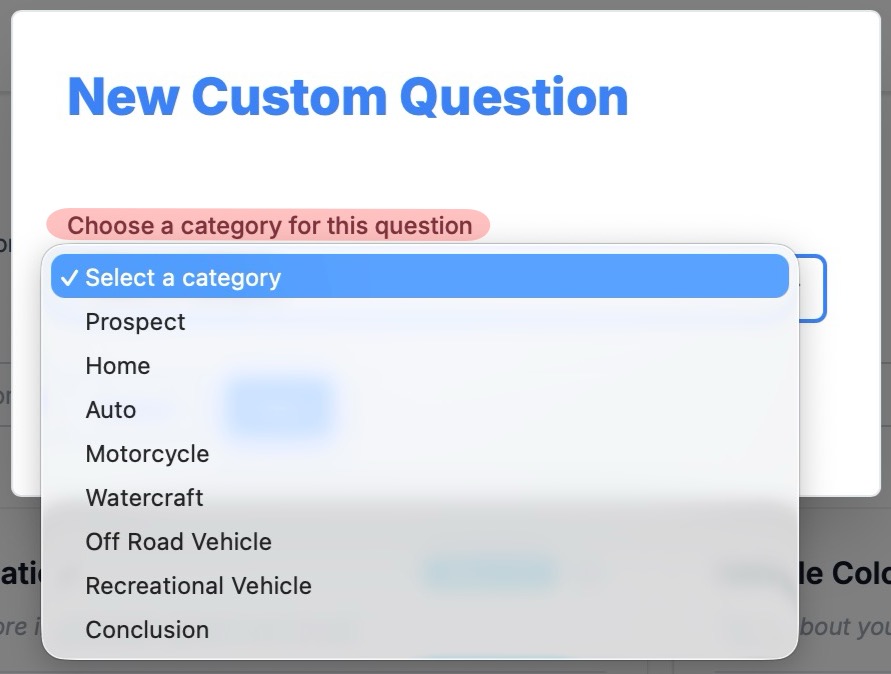
[Example: Auto questions appear in the vehicle/driver section, while Home questions appear in the property section.]
Step 2: Choose a Scope
-
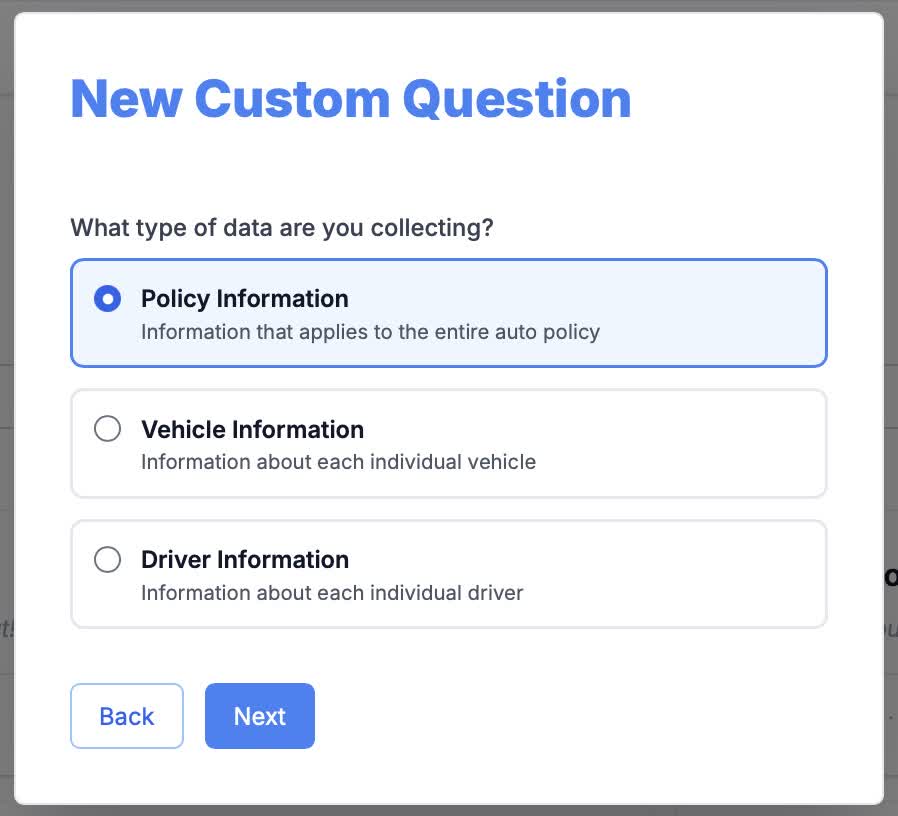
Choose how often this question should be asked within a submission. Custom Questions can be scoped to either the policy or an individual resource (Vehicle/Driver/Property).
-
Per Policy
Question will be asked once per submission. Policy-scoped questions are best for collecting information that applies to the entire policy, such as:
- General information about the policy
- Preferences or special requests
-
Agency-specific data
[Example: "How did you hear about our agency?"]
-
Per Resource (Vehicle/Driver/Property)
Question will be asked once for each resource of the selected type. Use this for:
- Vehicle-specific details
- Driver-specific information
-
Property-specific data
[Example: "Is this vehicle used for rideshare?"]
Note: If a submission includes multiple resources (vehicles, drivers, etc.), the question will appear once for each resource. So, if a submission has three vehicles,
the question will appear three times.
Available resource types depend on the category:
| Category | Available Resource Types |
|---|---|
| Auto | Vehicle, Driver |
| Home | Property |
| Motorcycle | Motorcycle |
| Watercraft | Watercraft |
| Off-Road Vehicle | Off-Road Vehicle |
| Recreational Vehicle | Recreational Vehicle |
Note: Once a question is used on forms or has answers, its scope cannot be changed.
Step 3: Give Your Question a Title
This is the main question text that prospects will see when completing the form.

⬇️ Tips for writing good question titles:
- Be clear and specific
- Use plain language
- Avoid jargon
Your custom question has been created! Next, you can edit the question to add inputs and configure how it collects responses. (See below)
📝 Editing Custom Questions
After completing the setup wizard, you’ll enter the question editor, which is broken down into the three sections pictured below.

Settings Panel (left)
- Internal Description: Notes for your team (not shown to prospects)
- Data Collection: View and modify the question's Category and Scope
Question Content (center)
- Title: Main question text
- Text: Optional description, instructions or help text
- Add Input: Fields for the users complete
Live Preview (right)
- Prospect Forms: Consumer-facing form view
- Agent Form: How agents see the question within Live Intake and Submissions
⚙️ Configuring Inputs
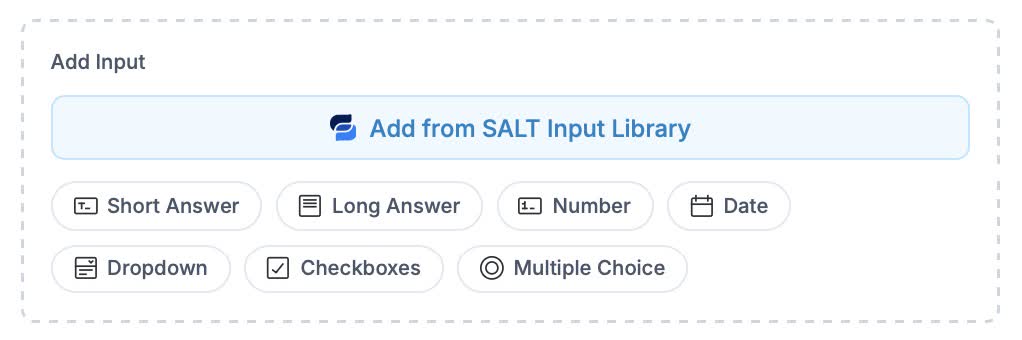
Inputs are the fields prospects complete when answering a question. To start customizing your question, add an input from the available options or select one from the SALT library.
Adding Inputs
⬇️ Click any input type to add it:
| Type: | Description: |
|---|---|
| Short Answer | Single-line text field |
| Long Answer | Multi-line text area |
| Number | Numeric input |
| Date | Date picker |
| Dropdown | Single selection from a list |
| Checkboxes | Multiple selection |
| Multiple Choice | Single selection with radio buttons |
After adding an input, configure the following:
- Label: title of input (shown to users)
- Help Text: optional help text shown below the input
- Field Type: input type
- Required: whether the field must be completed or not
-
*Options: only available for dropdown, checkbox, and multiple-choice inputs
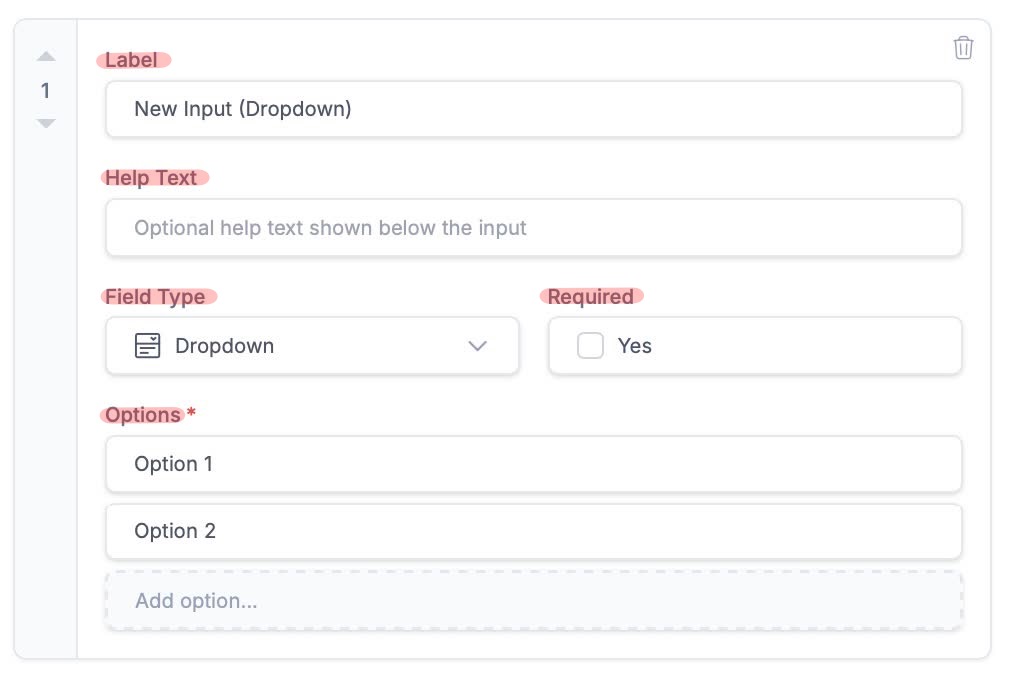
Note: A single question can contain multiple inputs. For configuration details and descriptions of each input type, see the Input Types Reference article.
Reordering Inputs
- Use the arrows on the left side of each input to change its position.

Inputs will appear to prospects in the same order you arrange them in the editor.
Removing Inputs
- To remove an input, click the trash icon.

If answers already exist for that input:
- Existing answers will retain the removed field’s data
- Future submissions will no longer include the field
Note: The editor automatically saves your changes as you work. You’ll see a brief Saved indicator when updates are stored.
Managing Question 'Statuses'
Custom questions can have one of three statuses: Unpublished | Published | Archived
Unpublished and Published questions will be displayed on the Custom Questions landing page. Archived questions are accessible from the "Status" dropdown, as pictured below.

-
Unpublished
Drafted questions that:
- Can be edited freely
- Cannot be added to forms
- Do not count toward plan limits
-
Published
Active questions that:
- Appear in the question library
- Can be added to forms
- Count toward your plan limit
-
Archived
Inactive/unused questions that:
- Do not appear in the question library
- Cannot be added to forms
- Do not count toward plan limits
🚧 Unpublishing Custom Questions
When a question is unpublished:
- It is automatically removed from forms and templates
- It returns to draft status
- It no longer counts toward plan limits
- Existing answers remain
If republished later, the question must be manually re-added to forms.

🗄️ Archiving Custom Questions
A question can be archived when it is no longer needed.
When a custom question is archived:
- It is removed from all forms
- It becomes read-only
- It does not count toward plan limits
- In-progress submissions skip the question
- Existing answers remain
If an archived question is restored:
- It returns as unpublished
- It must be manually re-added to forms

What's Next
After building your question:
- Review the live preview
- Publish your question
-
Add it to your forms
