
Custom Questions: Managing Input Options
Overview
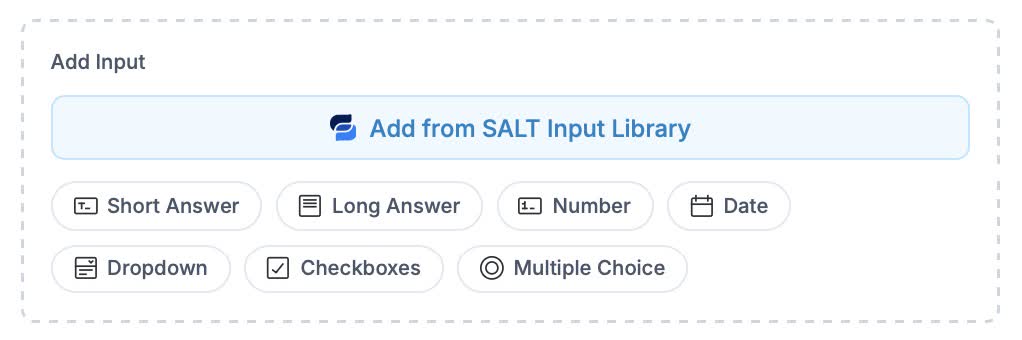
Custom questions support seven different input types, each designed for specific types of data collection. This article provides an overview of each input type to help you choose the right one when building your custom questions.
Custom Question Input Types
-
Short Answer (Text)
Single-line text field for brief responses
Best for:
- Names and titles
- Short descriptions
- Reference numbers
- Simple text responses
Configuration:
- Label (required)
- Required toggle
Example uses:
- "Preferred name"
- "Referral code"
- "Company name"
-
Long Answer (Text area)
Multi-line text area for longer responses
Best for:
- Detailed explanations
- Special instructions
- Notes and comments
- Descriptions
Configuration:
- Label (required)
- Required toggle
Example uses:
- "Please describe any special circumstances"
- "Additional notes for your agent"
- "Coverage preferences"
-
Number
Numeric input that only accepts numbers
Best for:
- Counts and quantities
- Years and ages
- Numeric values
- Measurements
Configuration:
- Label (required)
- Required toggle
Example uses:
- "Number of employees"
- "Square footage"
- "Years in business"
-
Date
Date picker for selecting dates
Best for:
- Event dates
- Start/end dates
- Deadlines
- Anniversaries
Configuration:
- Label (required)
- Required toggle
Example uses:
- "When do you need coverage to start?"
- "Date of purchase"
- "Move-in date"
-
Dropdown (Select)
Dropdown menu for selecting one option from a list.
Best for:
- Predefined choices
- Categories or types
- When you have 4+ options
- When order matters
Configuration:
- Label (required)
- Required toggle
- Options list (add/remove/reorder)
Example uses:
- "How did you hear about us?" (Referral, Online Search, Social Media, Other)
- "Preferred contact method" (Email, Phone, Text)
- "Business type" (LLC, Corporation, Sole Proprietor)
-
Checkboxes
Multiple selection checkboxes for choosing several options
Best for:
- "Select all that apply" scenarios
- Multiple choices
- Feature or service selection
- Opt-in preferences
Configuration:
- Label (required)
- Required toggle (at least one must be selected if required)
- Options list (add/remove/reorder)
Example uses:
- "Which coverages interest you?" (Auto, Home, Life, Business)
- "Which days work for a call?" (Monday, Tuesday, Wednesday...)
- "What safety features does this vehicle have?"
-
Multiple Choice (Radio)
Radio buttons for selecting exactly one option
Best for:
- Yes/No questions
- Either/or choices
- When only one answer is valid
- Small option sets (2-5 options)
Configuration:
- Label (required)
- Required toggle
- Options list (add/remove/reorder)
Example uses:
- "Is this your primary vehicle?" (Yes, No)
- "Usage type" (Personal, Business, Both)
- "Do you own or rent?" (Own, Rent)
Managing Options
For Dropdown, Checkboxes, and Multiple Choice inputs, you can add, remove, or reorder options using the steps below.
Adding Options
- Select the Input you'd like to add
- Edit the Input fields as desired
- Changes will auto-save once you click away

Removing Options
Click the trashcan icon next to any option to remove it.

Reordering Options
Use the arrows on the left side of each input to reorder them. The order you set determines how the inputs appear to prospects in the form flow.

Best Practices for Options
- Keep option text concise
- Use parallel structure ("Own", "Rent" not "I own" vs "Renting")
- Include an "Other" option when appropriate
- Put the most common choice first
Type Compatibility
You can change an input’s type after answers have been collected only if the existing answers are compatible with the new type. The table below shows which input types can be changed to other types.
| Original Type | Can Change To |
|---|---|
| Short Answer | Long Answer, Number*, Date* |
| Long Answer | Short Answer, Number*, Date* |
| Number | Short Answer, Long Answer |
| Date | Short Answer, Long Answer |
| Dropdown | Multiple Choice |
| Multiple Choice | Dropdown |
| Checkboxes | Cannot change type |
Note: Changing from Checkboxes to any other type (or vice versa) is not possible because checkboxes store multiple values while other types store single values.
Tips for Choosing Input Types
- Use the simplest type that works — Don't use a dropdown for yes/no; use radio buttons
- Match user expectations — Dates should use date pickers, not text fields
- Consider mobile users — Dropdowns are easier on mobile than many checkboxes
- Test your questions — Use the live preview to see how inputs appear