
Using Submission Views
Overview
Submission Views let you save, favorite, and share filtered lists of submissions. This makes it easy to quickly return to the views you use most without reapplying filters every time.
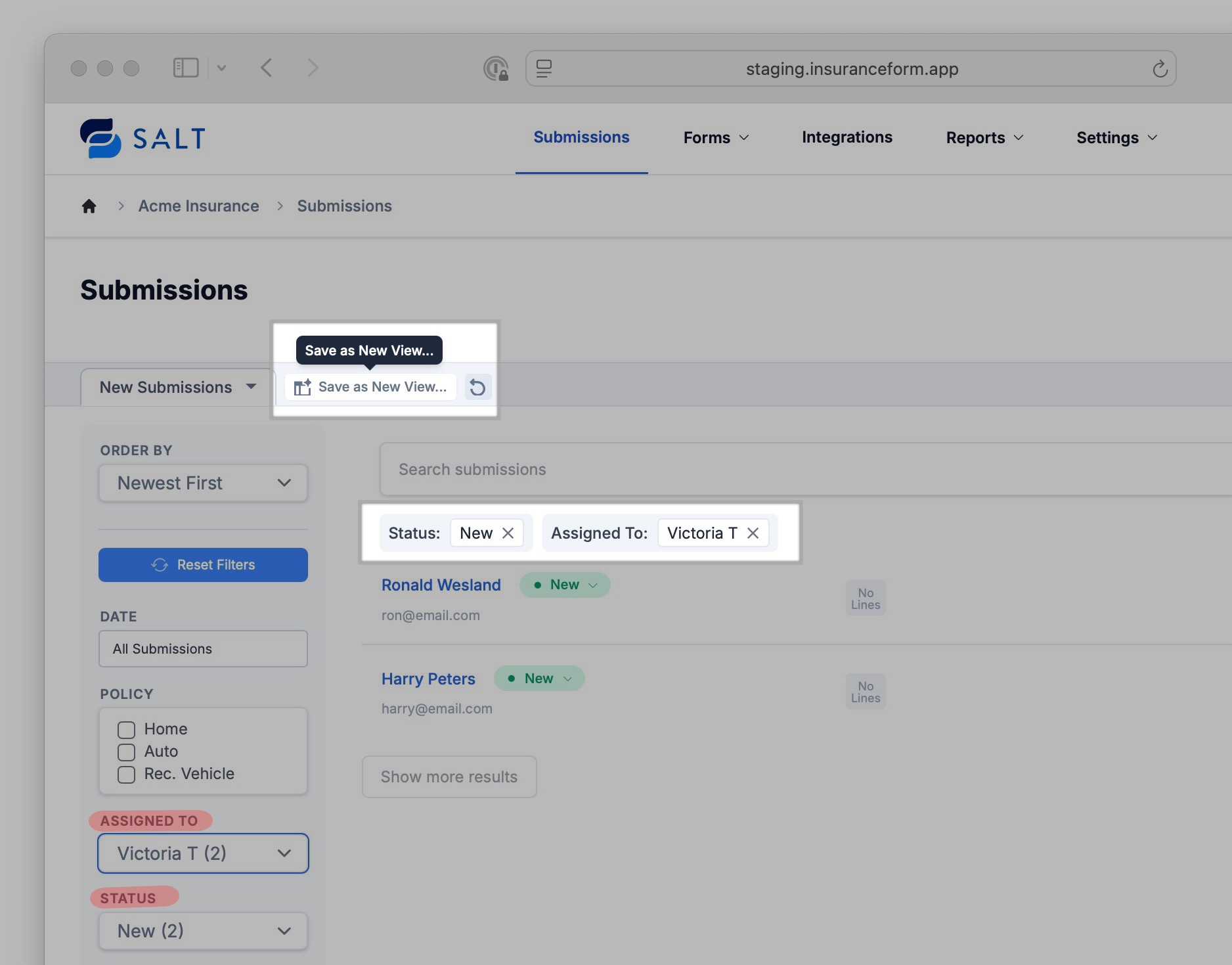
Create a View
- Go to Submissions.
- Apply your filters (Example: Line of Business > Home/Auto | Assignee > Me).
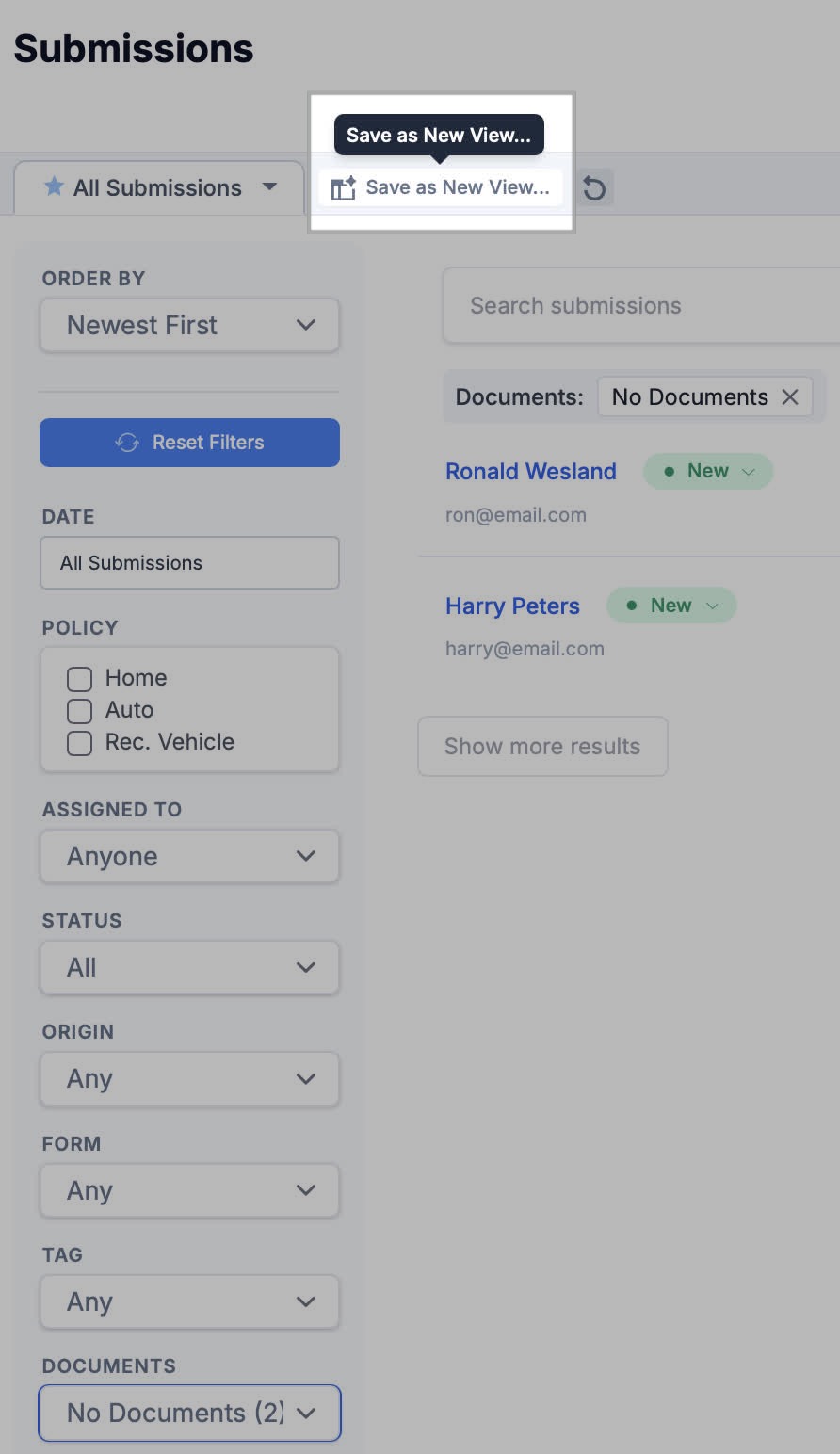
- Click Save as New View.
-
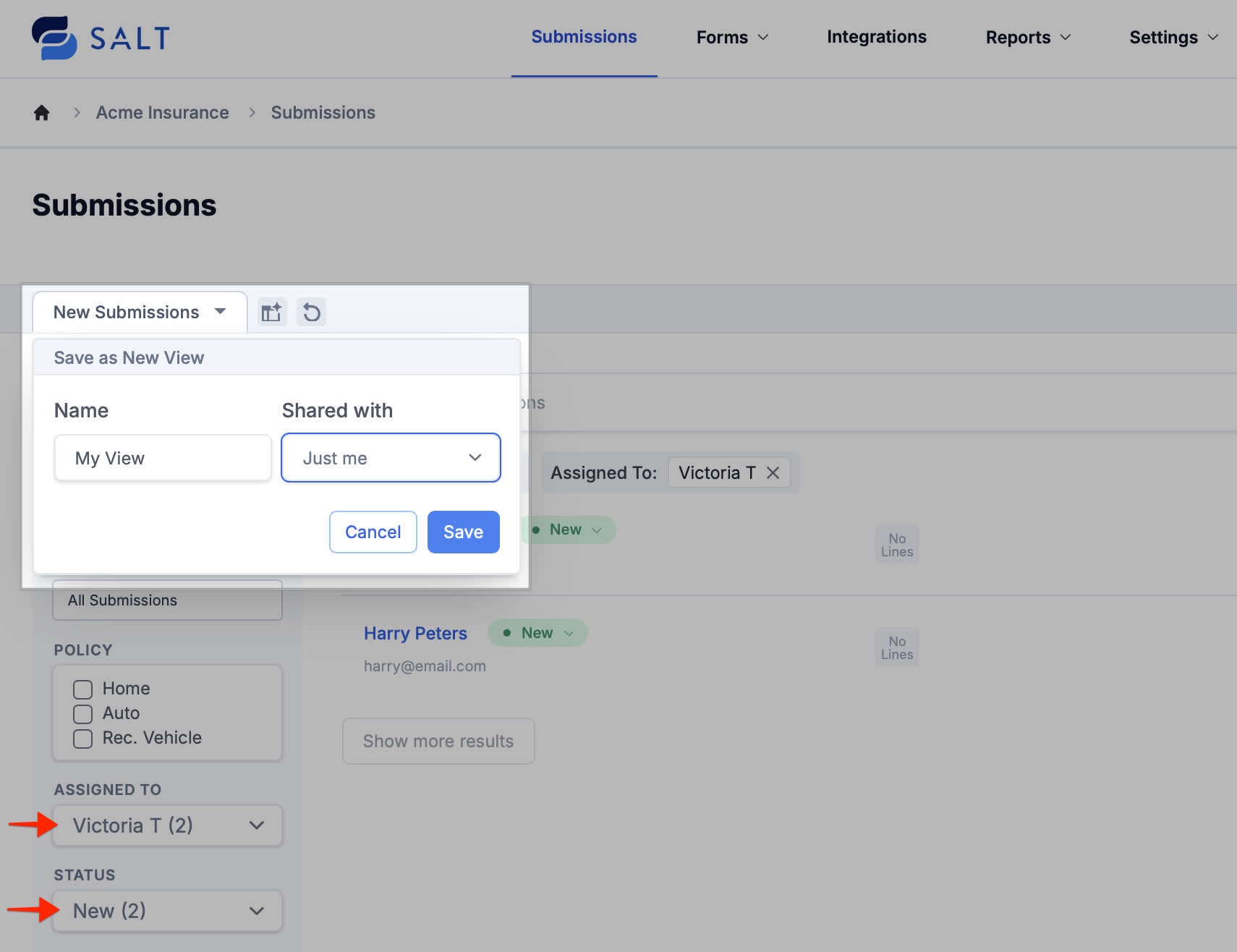
Give your view a name and choose whether to Share it with your team.
Editing Views
-
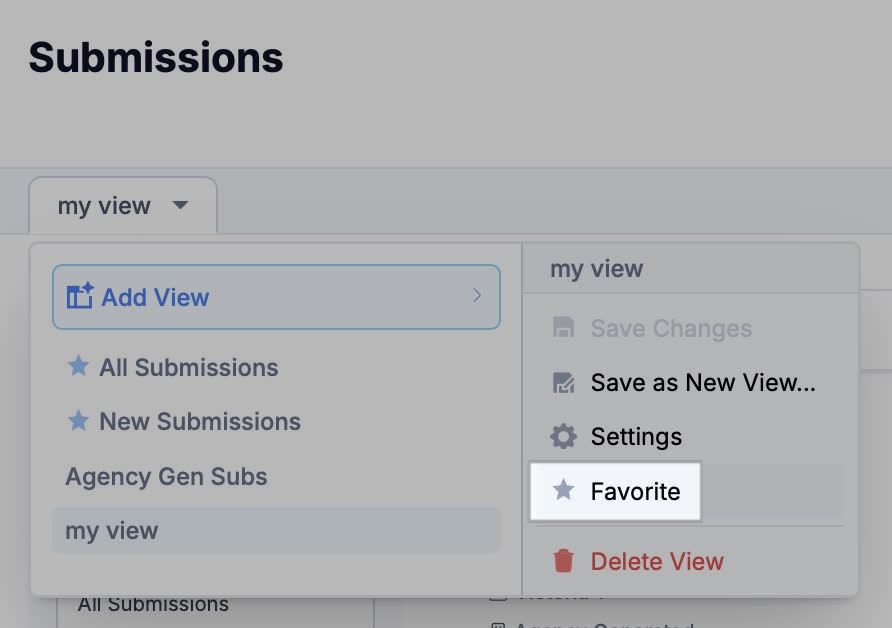
Favorite a view to pin it to the top of your list.
-
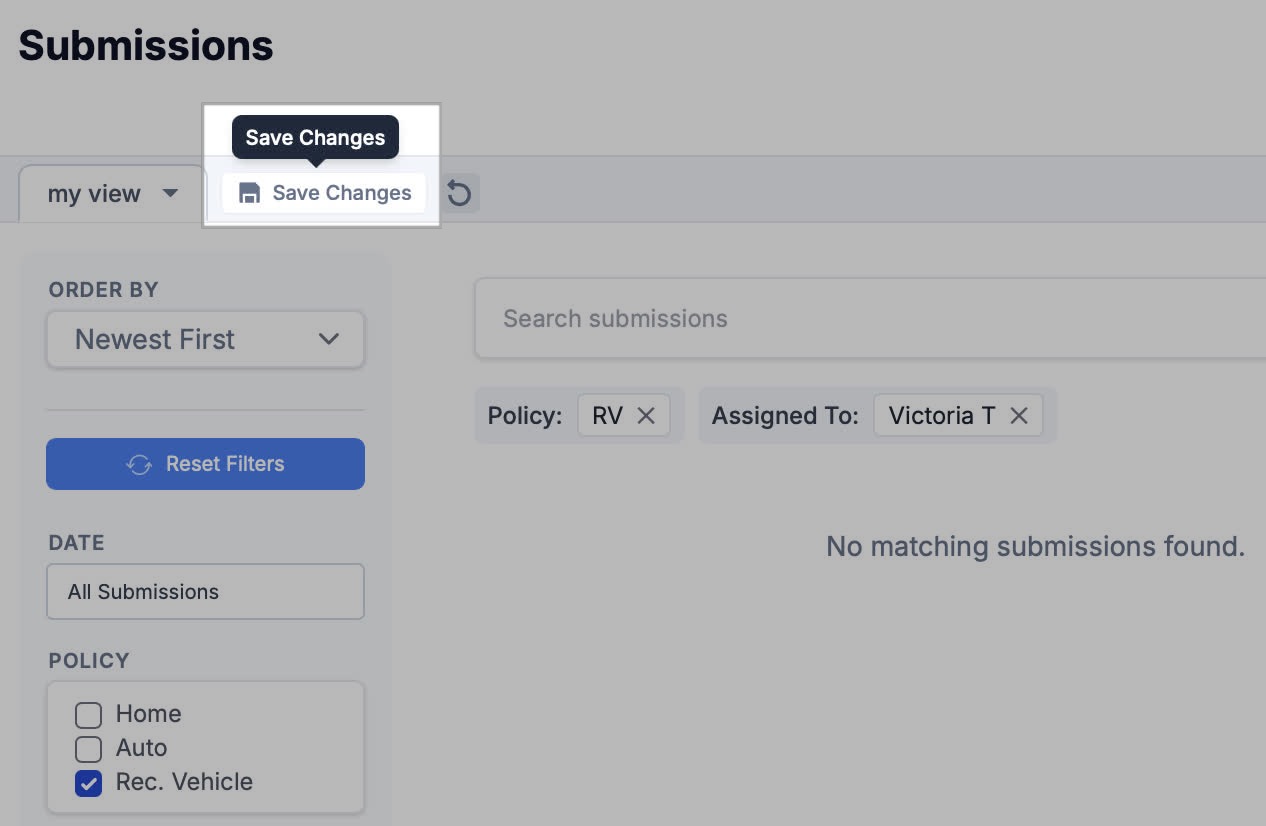
Editing a view you own/created will give you the option to Save Changes.
-
Editing a preset prompts Save as New View since presets are templates.
-
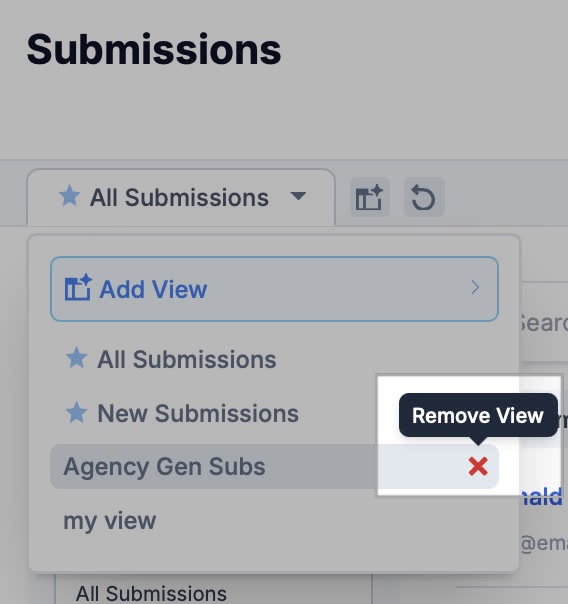
Remove from My Views only removes it from your list; it doesn’t delete the view for others.
Note: SALT remembers your last used view when you return to Submissions. If you don’t see the submissions you expect, double-check which view is active.
Manage Saved Views
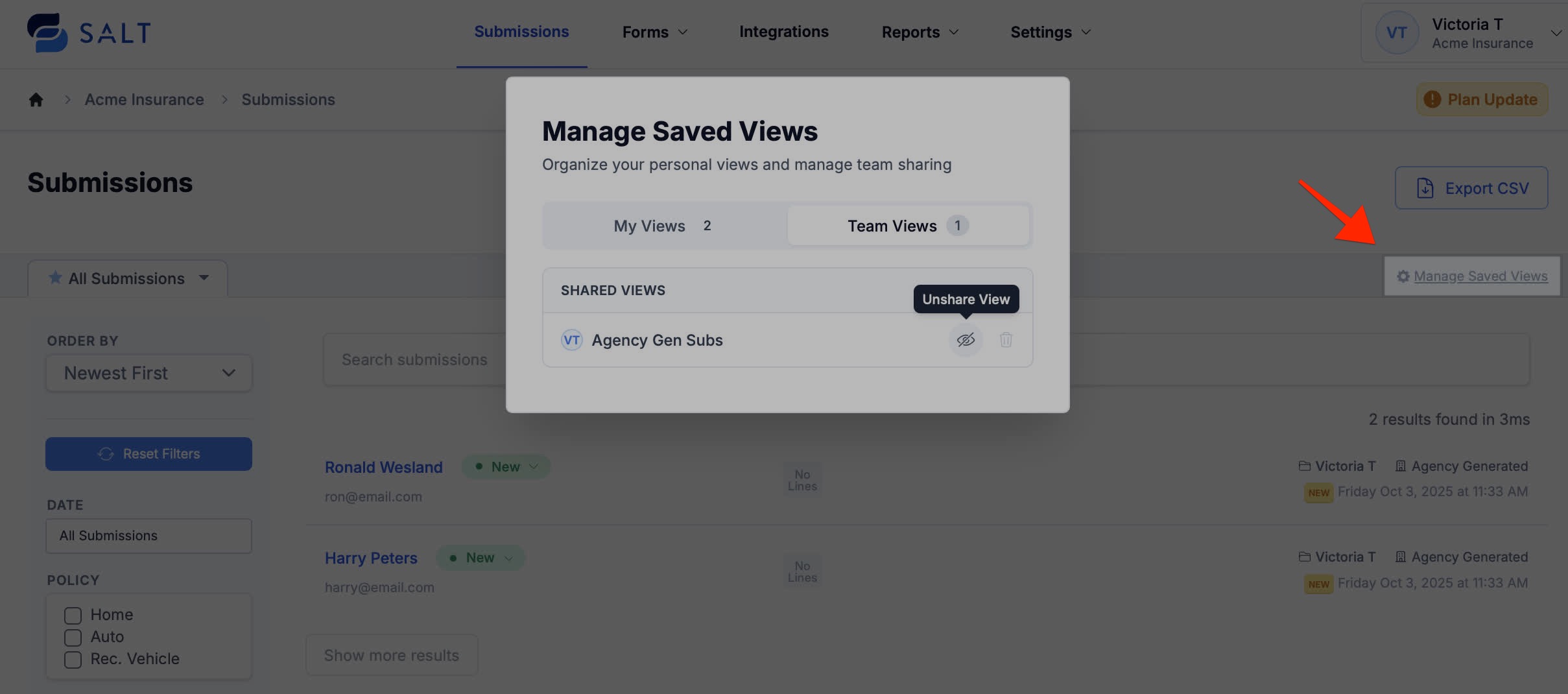
This section allows you to take a quick glance at your views and the views shared with the team. From the Manage Saved Views modal, you can:
- Review your views and those shared with the team
- Unshare a view you created
- Delete a view you created
- Remove a shared view from your own list (without deleting it for others)
FAQs
Why do presets ask me to “Save as New”?
Presets are templates. Any change creates your own copy.
Can anyone share a view?
Yes. Shared views appear under the Shared section for teammates.
Can I delete a shared view?
Only the creator can stop sharing or delete a shared view. Teammates can remove it from their own list without deleting it for others.