
Managing Users & Roles
Users & Roles let your agency group permissions and apply them to multiple users at once. This reduces the fatigue of managing permissions every time you invite or update a user.
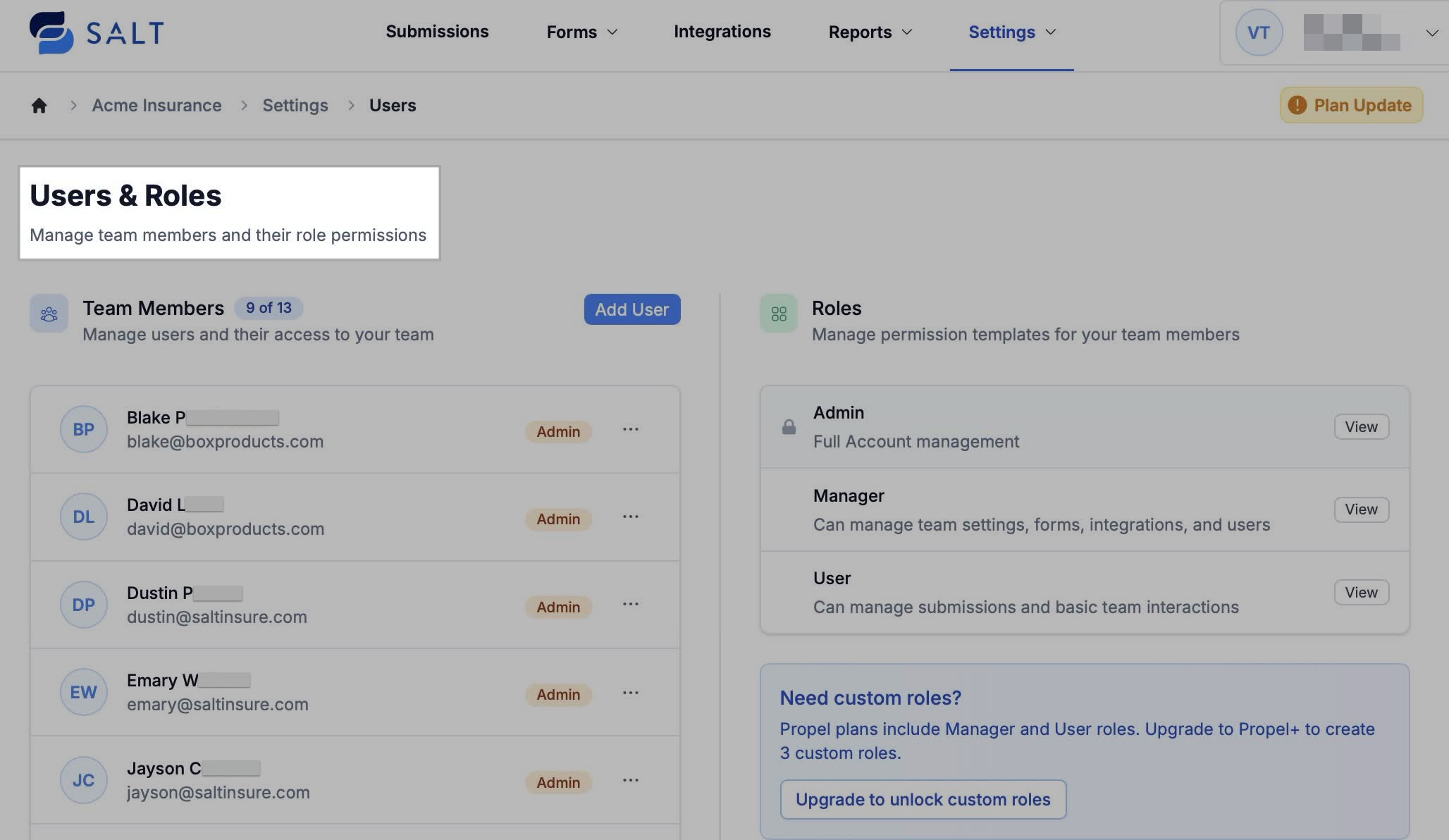
Team Members
Configuring Team Member Settings
From the Team Members section, you can:
- View the number of seats currently in use
- Add new users to SALT
- Edit a user's info and Role/Permissions level (see below)
- Send password reset email
- Disable Login for a team member
- Delete users
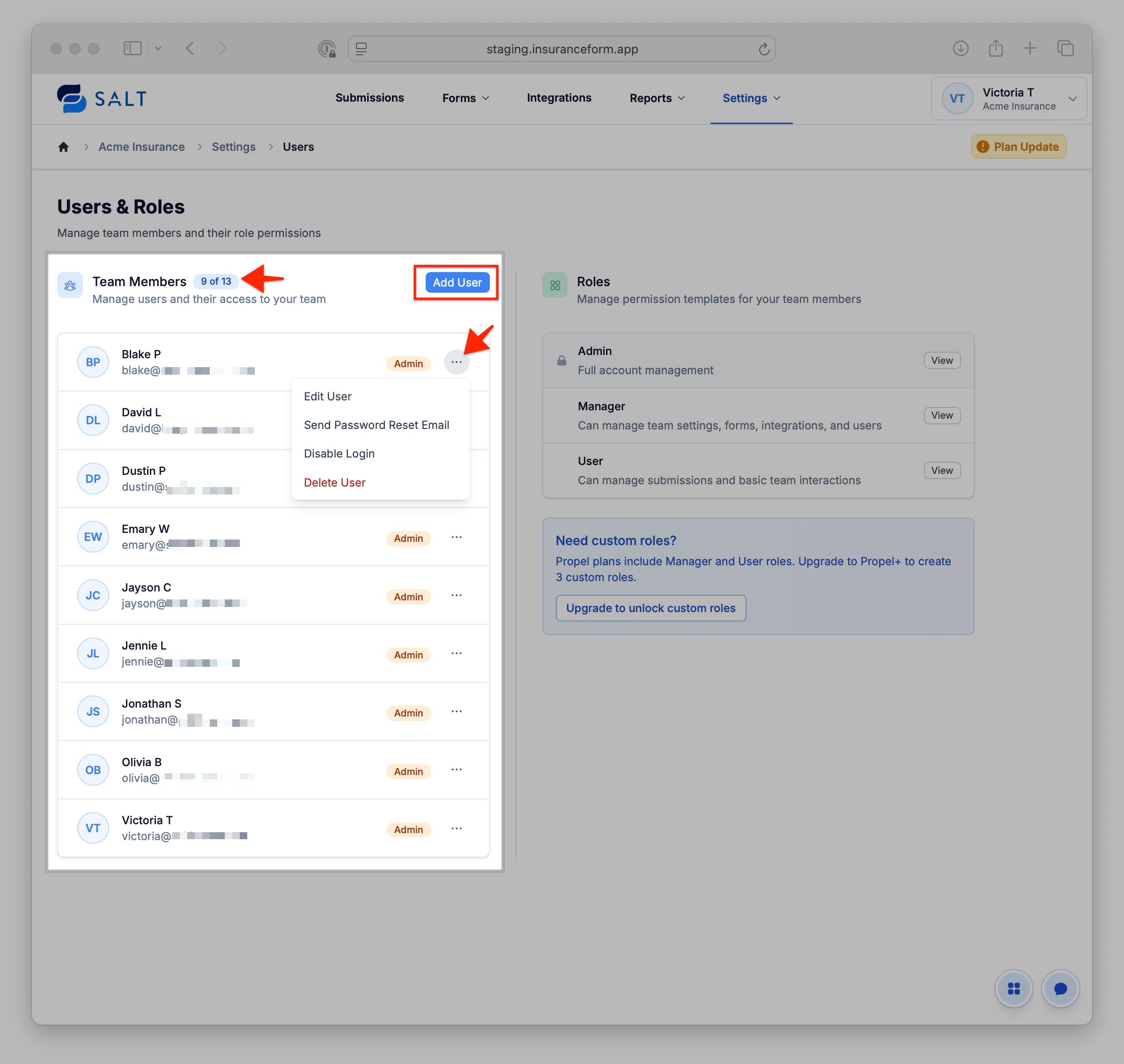
Note: Need to change a user's email? You'll have to delete and re-invite the user.
Manage Team Member's Role/Permission Level
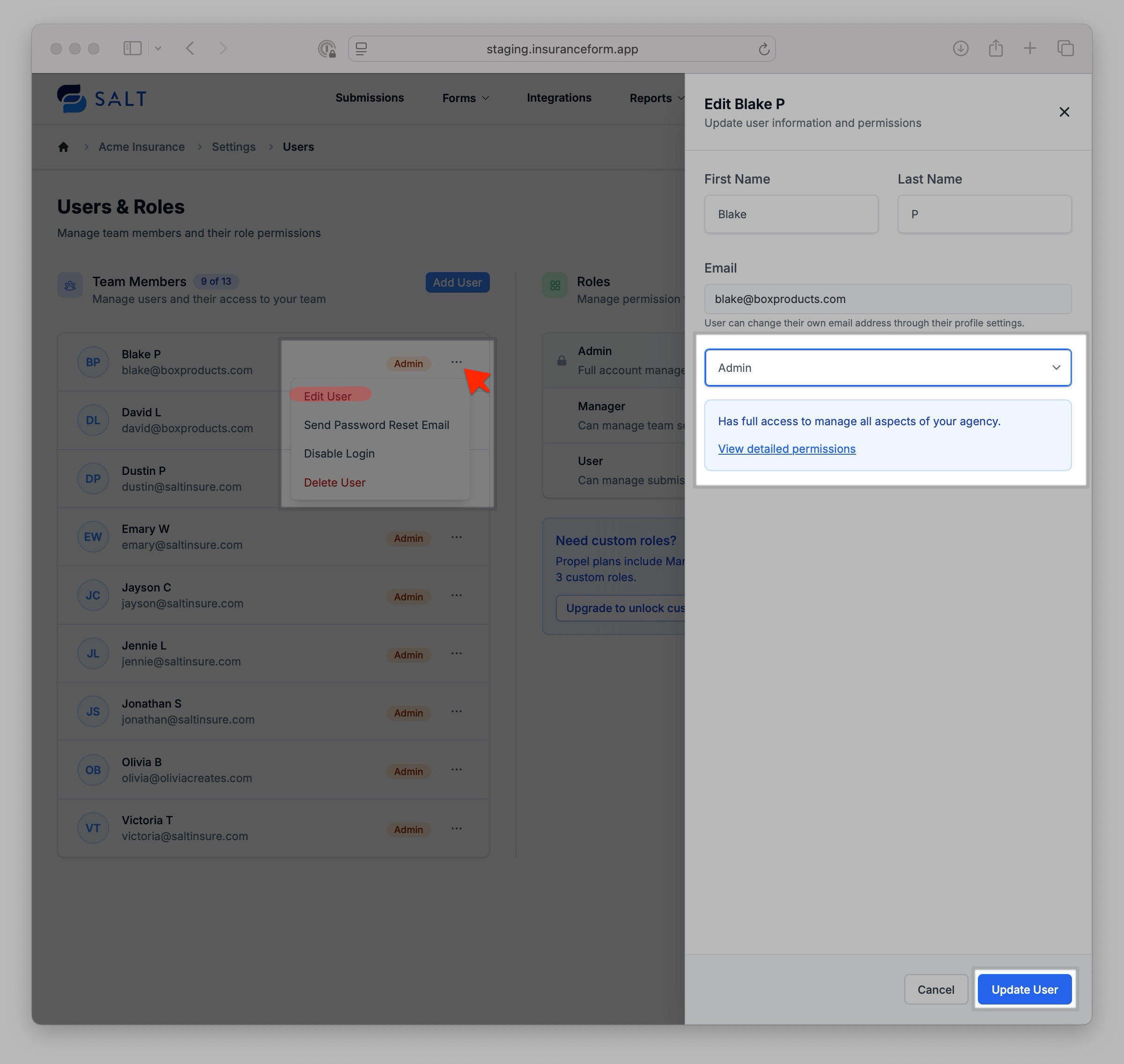
- Navigate to Settings > Users & Roles.
- Under Team Members, select the ellipsis (...) next to the user you want to edit.
- Select Edit User.
- Use the side panel to adjust their Role.
-
Select Update User.
Roles
Managing Roles
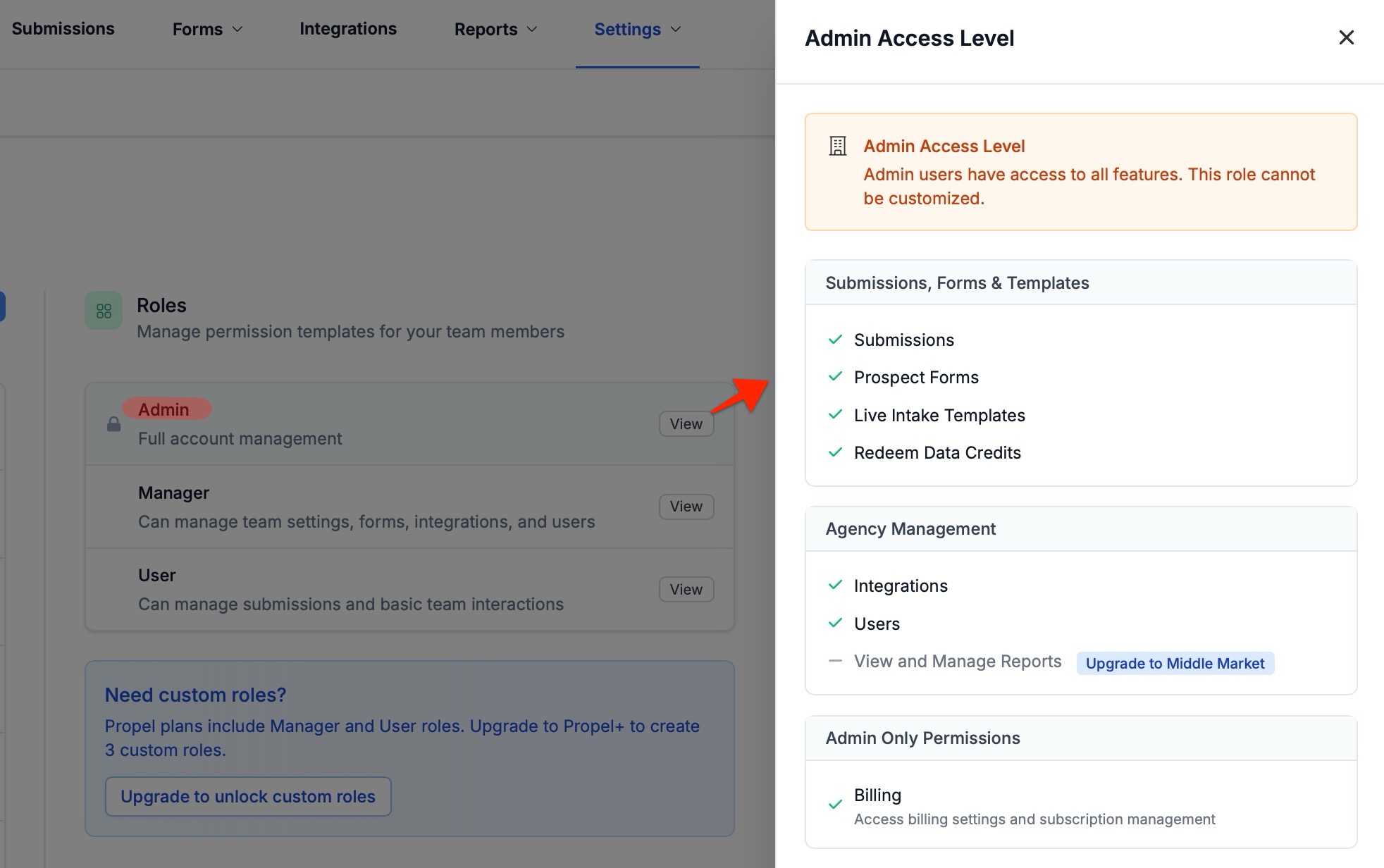
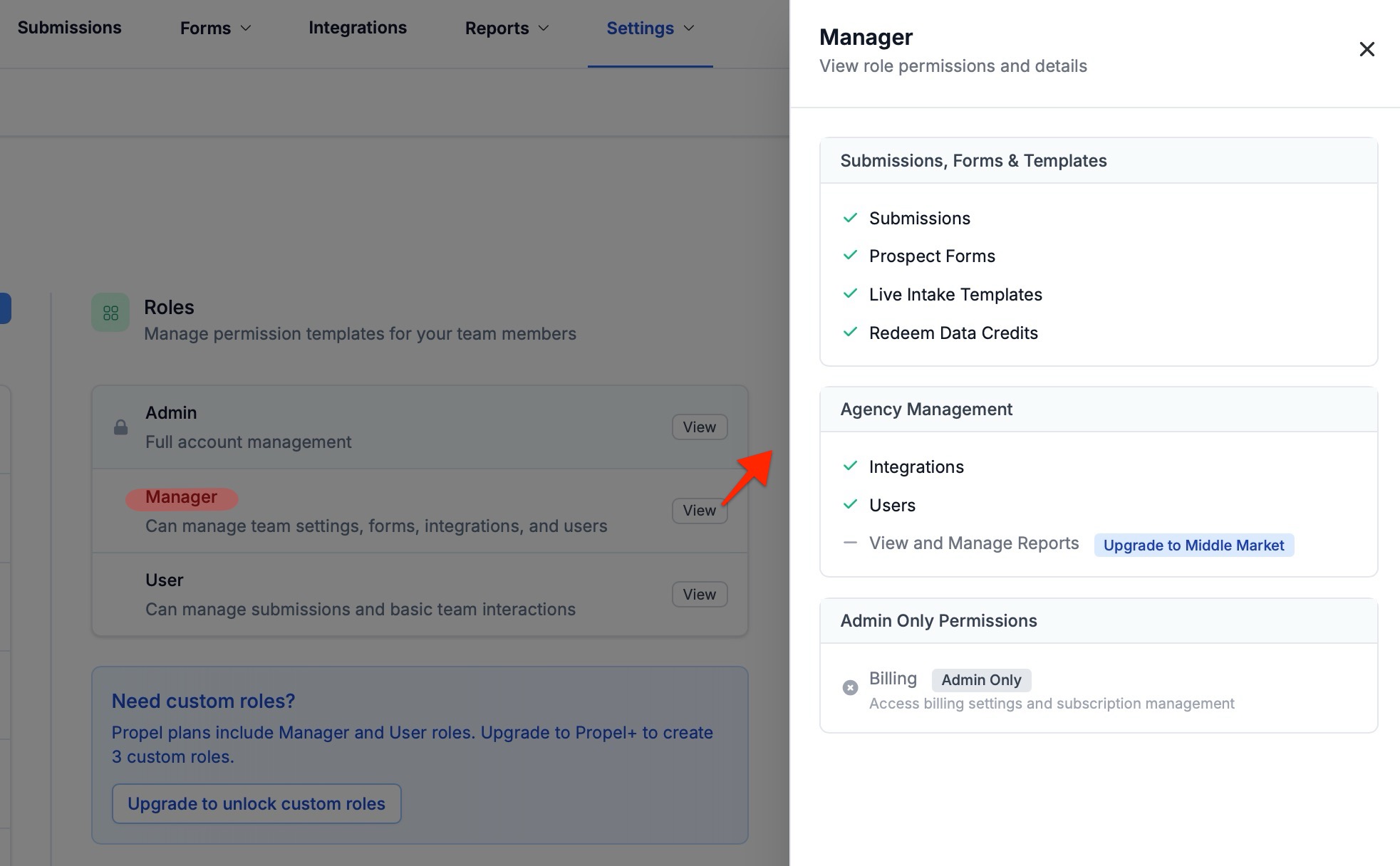
The screenshots below show the designated permissions granted to the following:
-
Admin - Admin users have access to all features.
-
Manager - Can manage team settings, forms, integrations, and users.
-
User - Can manage submissions and basic team interactions.
Best Practices
- Keep Admins limited to those who truly need Billing access
- Assign Manager to team leaders who need broad control without Billing access
- Build Custom Roles (Propel+ & Middle Market) for specialized staff like producers, CSRs, or intake teams
Need Help?
Not sure which role to assign, or run into issues after migration? Our support team is happy to help, so feel free to reach out via:
- 📩 Email: support@saltinsure.com
- 💬 Or reach out via the in-app chat