
[SALT <-> PL Rating] Guide
SALT's direct integration with Vertafore's PL Rating simplifies data synchronization for insurance agencies utilizing PL Rating as their comparative rater.
This guide walks you through connecting SALT with PL Rating, maintaining smooth data flow, and addressing common troubleshooting scenarios.
Here’s a step-by-step video tutorial to guide you:
📽️ [How to Sync SALT Submissions to PL Rating]
Activate PL Rating
To connect SALT & PL Rating, *admins/owners will first need to activate the PL Rating integration using the steps below.
⚙️ To Connect SALT to PL Rating:
- Navigate to Integrations > PL Rating.
- Locate the PL Rating integration, and tap Connect (or toggle the switch).
Sending Data from SALT to PL Rating
Auto-sync is not an available option for PL Rater, so all submissions will need to be synced manually. Follow the steps below to send data from SALT to PL Rating.
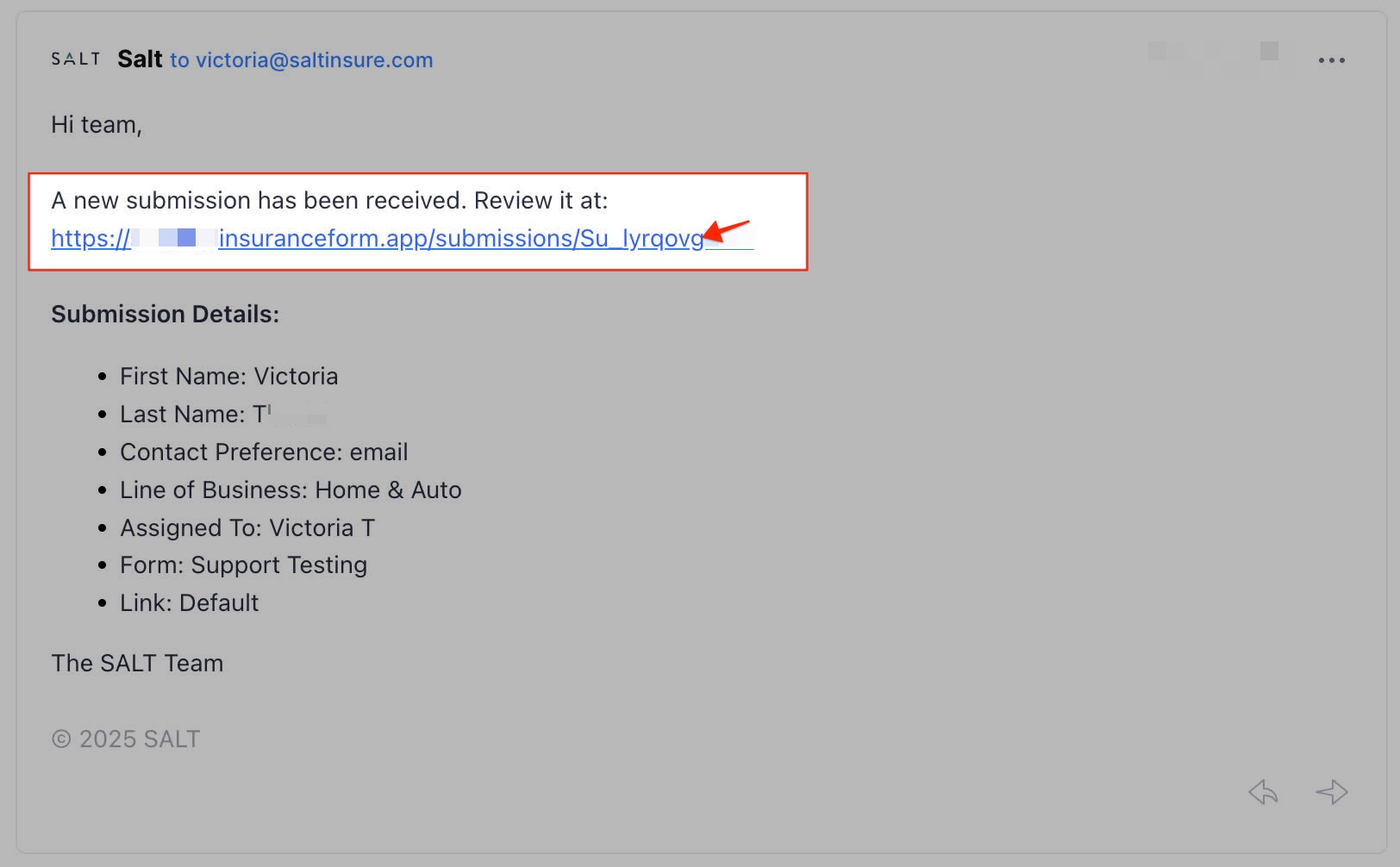
When a prospect completes their submission, you will receive a "New Submission" email from SALT with a link to view the submission.
⚙️ To Finish the Sync Process:
-
Open the email and click the link to view the submission in SALT
-
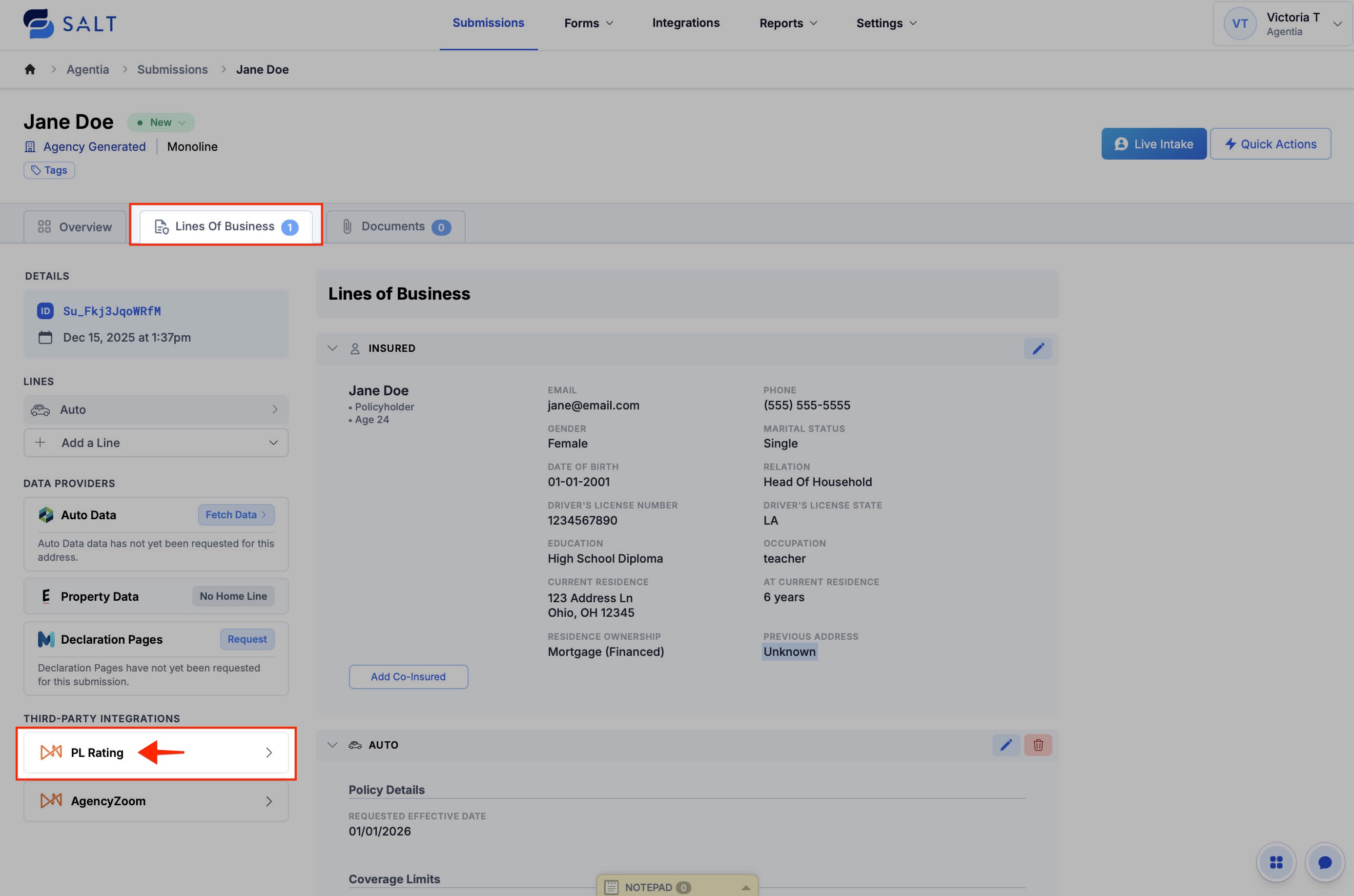
Switch to the Lines of Business tab, and select PL Rating
-
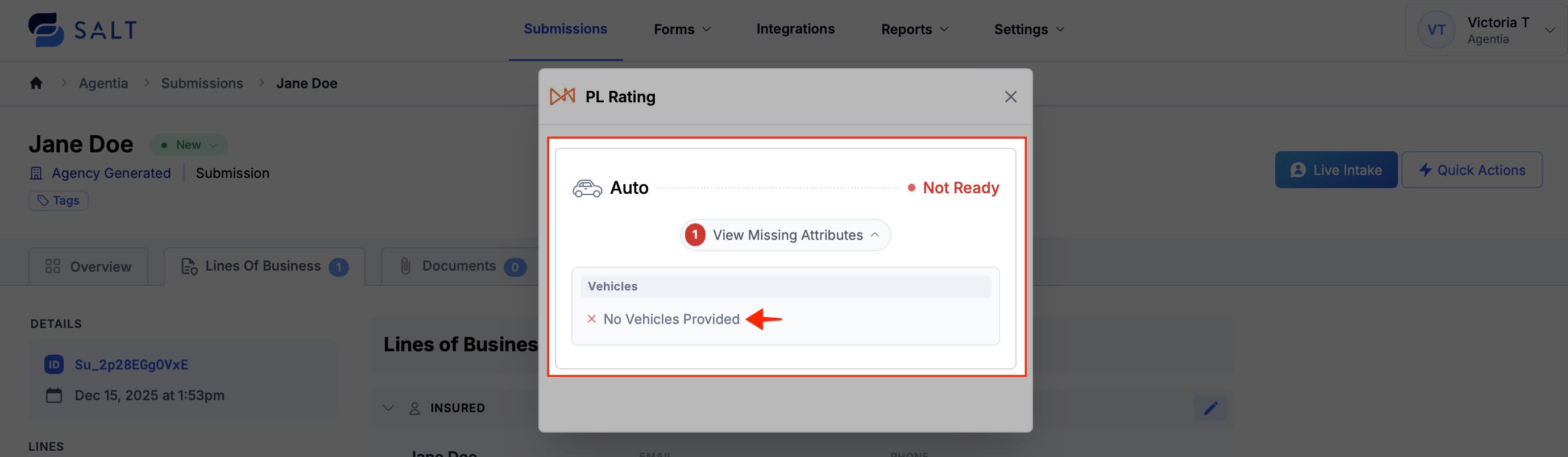
Review and correct Missing Attributes (if any)
At this stage, you will see one of two statuses:
- The line of business is Ready to sync, or
- A Not Ready status with a “View Missing Attributes” option (Open the dropdown to see the required fields needed to complete the sync.)
Add or correct the missing information before proceeding.
-
Send Data to PL Rating
Once the submission is ready to sync:
- Click Send Auto/Home Data > Confirm
- The status will change to "Pending Confirmation"
- Click Claim & Confirm on PL Rating
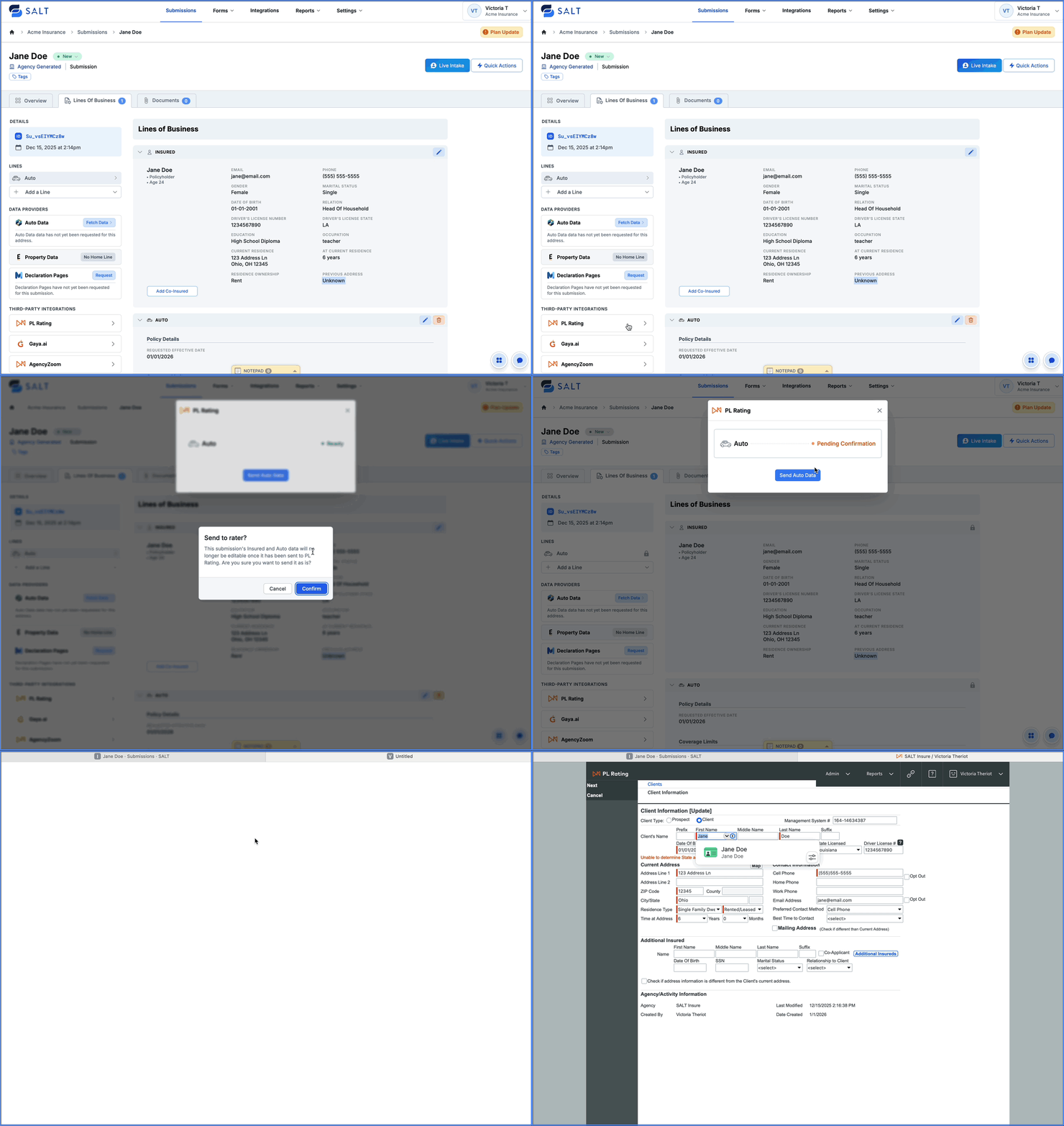
This will open a direct link to the synced submission inside PL Rating / Vertafore.
SALTY Tip: To prevent trouble with syncing info from SALT to PL Rating, be sure that you're logged into PL Rating before clicking the "Claim & Confirm" button.
Troubleshooting & FAQs
-
Re-sync/Resubmit a Submission:
PL rating is the only rater that has a built-in option for manually resubmitted/syncing a submission.
1. Navigate into the submission
2. Select Request Resync > Confirm
3. Select Claim & Confirm on PL Rating
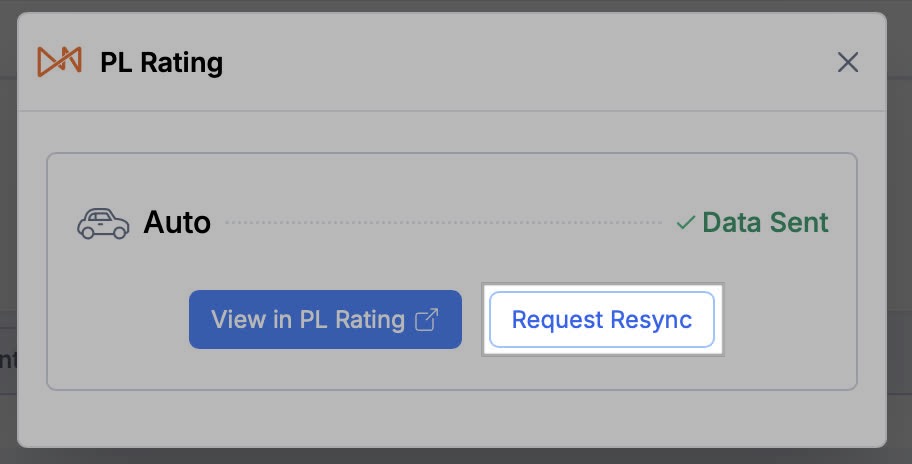
You will now be brought directly to the re-synced submission in PL Rating.
-
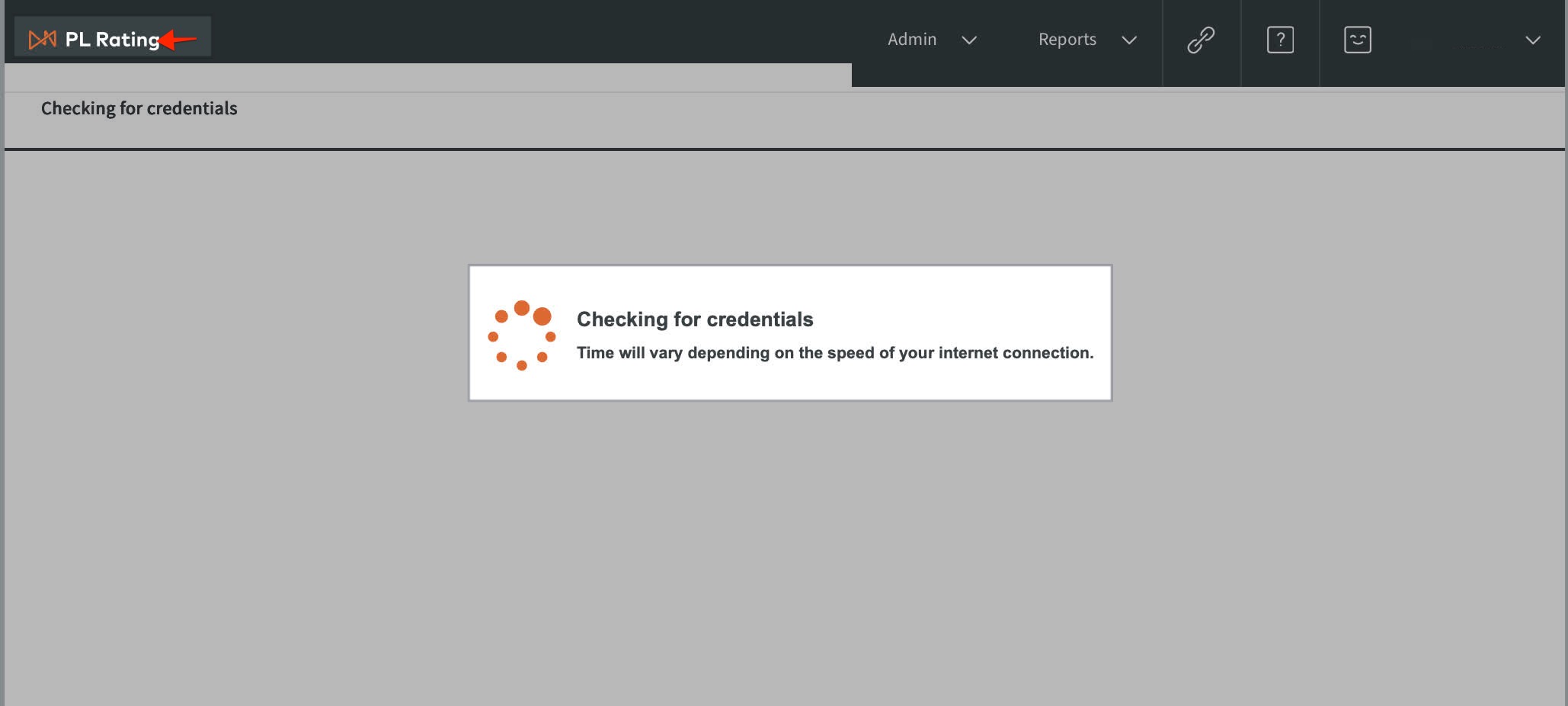
Stuck on "Checking for Credentials":
In some cases, PL Rating may open and remain stuck on “Checking for credentials.” If this occurs, click PL Rating in the top-left corner of the PL screen to see the entry.
Please contact the SALT support team for further assistance when needed.